Set Up Google Search Console (Web Master Tools) on Word Press

You can now integrate your WordPress site into Google Search Console (Web Master Tools) very easily.

Just do this:

  1. Go to Google Search Console: https://search.google.com/search-console.
  2. If you haven’t set it up yet, it will have you add a property (website) to your account.
  3. To add a property, you just provide the URL of your site (the one users end up at, not the one you use to manage WordPress in the background).
  4. After this, you will be presented with multiple options for verifying the site.  One of them will be adding a meta tag.  Click that one and get the “content” string from the tag (the part between the quotes after “conent” =.
  5. Go to your WordPress site manager (the place you change things).  On the left bar, you can find “WP Admin”.  You can also probably just go to https://<your-site-name&gt;.wordpress.com/wp-admin/ directly.
  6. Click “Tools” then scroll down to “Google Webmaster Tools”, and add the content string there.
  7. Save.
  8. Go back to Google Search Console, refresh, and you should be able to see your website verified.  This might take a little while, but it was pretty instant for me.

Note that it can take a few days for Google to scan your website and build the necessary data to fully populate the UI and make it useful.

Python PIP Install Local Module While Developing

I’m definitely still in the early stages of learning module/package building and deployment for python.  So, take this with a grain of salt…

But I ran into a case where I wanted to develop/manipulate a package locally in PyCharm while I was actively using it in another project I was developing (actually, in a Jupyter notebook).  It turns out there’s a pretty cool way to do this.

Module Preparation

The first thing I had to do was prepare the package so that it was deployable using the standard python distribution style.

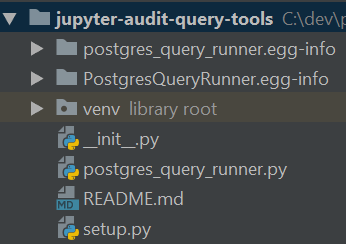
In my case, I just made a directory for my package (lower-case name, underscore separators).  Inside the directory, I created:

Here’s an example.  Ignore everything that I didn’t mention; all of that is auto-generated by PyCharm and not relevant.  In fact, it probably would have been better to create a sub-directory in this project for the package; but I just considered the top level directory the package directory for now.

package-layout

Module Installation

Once you have your module set up like this, you can jump into your command line, assuming you have PIP installed, and you can run this command (tailored for your package directory location):

λ pip install -e C:\dev\python\jupyter_audit_query_tools
Obtaining file:///C:/dev/python/jupyter_audit_query_tools
Installing collected packages: PostgresQueryRunner
Running setup.py develop for PostgresQueryRunner
Successfully installed PostgresQueryRunner

You’ll also be able to see the package mapped to that directory when you list the packages in PIP:

λ pip list | grep postgres
postgres-query-runner 1.1.0 c:\dev\python\jupyter_audit_query_tools

Module Usage

After this, you should be able to import and use the package / modules in your interpreter or notebook.  You can change the code in the package and it will update in the places you’re using it assuming you re-import the package.  So, in Jupyter, this would mean clicking the restart-kernel/re-run button.

Docker Run Postgres, expose to Local Host

I needed to spin up a Postgres database for testing a new application, so I figured I’d do it via Docker to keep my system clean.

So, the plan is to develop an application on my PC / localhost (e.g. in PyCharm), but connect to the Postgres instance within the Docker container.

Getting & Running Postgres

This is actually quite trivial:

docker pull postgres
docker run --name postgres -e POSTGRES_PASSWORD=password -d -p 5432:5432 postgres

The first command pulls the image from docker-hub, and the second one runs the container and exposes the Postgres port externally (to the same numbered port) so that we can communicate with it from our local host.

Setting Up pgAdmin

The pgAdmin utility is a wonderful UI for working with Postgres.  You can download it here: https://www.pgadmin.org/download/.

In my case, I actually want to verify that connecting to Postgres works from outside of the container environment.  So, I chose to install the Windows version locally to help verify this.  If you are so inclined, they have Docker images instead so that you can install pgAmin in a container as well to keep your system clean.

Once you’ve installed pgAdmin, you can open it, go to the browser on the left panel, right click on “Servers”, and add a new one targeting “localhost” and port “5432”.

Once you do that and open it, you should hopefully be able to see monitoring statistics on it.  Then you can create a new database and work with it at will!

Persistent Data

Remember, if you delete your docker container, the data for the database will go away.  You can stop it and start it at much as you like though.  If you need to delete it and still access the data for some reason, look into using a volume in docker (this is what they’re for).


Minikube – Setup Kubernetes UI

If you have not yet installed Minikube, refer to this blog first: https://coding-stream-of-consciousness.com/2018/11/08/installing-minikube-on-windows-10/.

Assuming you have Minikube running, open another command prompt (I used an administrator one).  Then run:

kubectl proxy

Once that is up, you can go to this link: http://localhost:8001/api/v1/namespaces/kube-system/services/kubernetes-dashboard/proxy/#!/node?namespace=default and the kubernetes UI should be available.

The Kubernetes documentation may recommend a different link that does not work. I believe this is probably because Minikube is out of date compared to the current Kubernetes releases; but maybe it is just a documentation error.

For the record in case it changes in the future, the link from the Kubernetes documentation is: http://localhost:8001/api/v1/namespaces/kube-system/services/https:kubernetes-dashboard:/proxy/.

Installing Minikube on Windows 10

Installing Minikube on Windows 10 was not as straightforward as I had expected.  I tried it at home and gave up originally (instead using https://labs.play-with-k8s.com/).

I wanted to get it set up properly for a new job though, so I worked through the issues.  Please note in case your issues are different than mine, these links are extremely enlightening:

Much of the online documentation I found was outdated.  The actual Git Hub repository was fine though; so I recommend using the instructions there : https://github.com/kubernetes/minikube.  Mine are based on those and the previously noted links.

Before We Start – If You’re Already in a Bad State

If you’ve already started installing Minikube and you failed, or if you have been hacking at this with my instructions and are stuck, you may end up needing to delete the C:\users\user-name{.minikube and .kube} directories to clean things up.  I had to do this as I messed up the virtual switch/etc set-up originally.  Don’t do this unless you do get stuck though.

You can’t do this folder clean-up if the Hyper-V minikube VM is still running (you can see that in the Hyper-V manager).  If you try to delete them while its running, it will partially delete files and then you’re in a state where you can’t even stop the VM on purpose!  To fix that, you need to kill the processes related to the VM and set it to not automatically start up in the Hyper-V manager. Then you can remove the VM and try again.

Some detailed information on how to kill a hung Hyper-V VM is here: http://woshub.com/how-to-stop-a-hung-virtual-machine-on-hyper-v-2016/. This was painful to fix.

The Minikube start command will hang if you’re in these bad states, so you really do need to delete those directories to get it set up cleanly.

Warning: Shut Down Issues

I found after I had this all working that (1) my PC was having trouble restarting – it would never stop, and (2) if I came and tried to do “minikube stop”, it would hang forever.  It turns out the current version of minikube has issues noted here: https://github.com/kubernetes/minikube/issues/2914.  So, to shut it down you need to do “minikube ssh” and then “sudo poweroff”.  Even trying to manage it from Hyper-V will not work properly.  They recommend downgrading to v.27; the current version I saw the issue with is .30.  I haven’t tried the downgrade yet.  So, these instructions will get it working with v.30; but you will have this shut-down issue potentially.

For now, I’m personally just going to stay with v.30, but I told it to NOT automatically start the minikube VM when my PC starts up in Hyper-V.  If I use this too often and they don’t fix this issue, I may downgrade at a later date though.

Installation Steps

Here is the full set of steps I had to use to get Minikube correctly running on my Windows 10 desktop:

  • Enable the “Hyper-V” windows feature (I also enabled containers, and WIndows Hypervisor Platform, they probably aren’t needed though).
  • Go into Hyper-V manager (search your start menu) and:
    • Click Virtual Switch Manager
    • Create a new virtual switch of type “External”.
    • Name it “External”.
    • Set it to use the “External network” and pick the NIC you commonly use.
    • Press OK.
  • Get an administrative command prompt open.
  • Install https://chocolatey.org/ if you don’t already use it; it’s like yum or apt-get in Linux.
  • choco install minikube
  • choco install kubernetes-cli
  • minikube start –vm-driver “hyperv” –hyperv-virtual-switch “External” –v=7
    • Note that we’re telling it to use Hyper-V and the switch we created.
    • We’re also setting a very verbose log level.

If you have issues after this, you may want to clean up and try again with the information I provided before the steps.

Validation

Let’s try and launch something to make sure it’s working (with instructions copied from the Git Hub link).

  • Launch the “hello-minikube” sample image as a pod.
    • kubectl run hello-minikube --image=k8s.gcr.io/echoserver:1.4 --port=8080
  • Expose it as a service.
    • kubectl expose deployment hello-minikube --type=NodePort
  • Verify the pod is up and running (wait if it is still starting).
    • kubectl get pod
  • Ask Kubernetes for the service URL:
    • minikube service hello-minikube --url
  • Hit that URL in your browser or CURL (you should get back a bunch of text with CLIENT VALUES at the top of it.
  • Hopefully all that is working.  So, let’s remove the service and pod we deployed:
    • kubectl delete service hello-minikube
    • kubectl delete deployment hello-minikube
  • Now you have Minikube running, and it’s a clean copy.

I hope that helps you get started!

User Interface

Refer to this blog for the quick user-interface setup instructions: https://coding-stream-of-consciousness.com/2018/11/08/minikube-set-up-kubernetes-ui/.

Doing Upgrades

You will want to update minikube and the kubernetes CLI after a while.  You can see their versions in the status command and then you can update them easily with chocolatey.

  • minikube status
  • choco upgrade kubernetes-cli
  • choco upgrade minikube
  • minikube update-context